
Most studios can name the phones they want covered. The harder part is agreeing what "works on this device" means, so that a pass on a three-year-old budget handset carries the same weight as a pass on this year's flagship. A per-device compatibility check gives every phone or tablet on the list the same short run and the same three possible results. This guide sets out what that run should include and how to read what comes back. If you are still deciding which devices belong on the list, start with the platforms section of our guide to scoping game QA.
Write down the device before installing anything
A failure that cannot be tied to an exact device is hard for engineers to act on. Record these details before the build goes on:
- Model: the brand and model code as well as the name on the box. Google Play's device catalog help points out that one marketing name can cover several device models, and that variants of the same model can ship with different RAM and Android versions.
- OS version and patch level: a fix that holds on one Android or iOS version may behave differently on the next.
- RAM, screen resolution and aspect ratio: usually the first things a developer asks about when a memory or layout bug comes in.
- Navigation mode on Android: gesture navigation or the three-button bar, since each sits differently over the bottom edge of the screen.
The run each device gets
Keep the steps short and identical from device to device. Variety belongs in the device list, not in the test steps. A typical run covers eight areas.
- Install: a clean install from the build or test track you provide, including first-run downloads and permission prompts. Note anything that stalls when storage is low.
- Cold launch: time from tapping the icon to the first screen that accepts input. A stopwatch reading is enough. It is there to spot outliers, not to replace a profiler.
- First session: the opening tutorial or first level, followed by a few minutes of core play agreed before testing starts, so every tester stops at the same point.
- Screen fit: menus, HUD and text checked against the notch or camera cutout, rounded corners and the system bars, in each orientation the game supports. This deserves extra attention now that Android 15 draws apps edge to edge by default once they target that version, so content can end up behind the status bar, the navigation bar or a cutout unless the game handles insets. Google's own guidance names lower-traffic screens such as sign-in and settings as places where hidden UI tends to survive.
- Input: touch targets close to the screen edges, the back gesture or back button, and the on-screen keyboard over any text field.
- Busiest scene: the heaviest moment the short session reaches, watched for stutter, long loads and a phone that gets uncomfortably warm.
- Interruptions: home and return, lock and unlock, an incoming call or notification, and a switch to another app and back. Each time, note whether play resumes from the same spot, reloads or restarts, and what the player loses.
- Network change: for online games, cut the connection completely in the middle of play and confirm the phone really is offline, with no Wi-Fi and no mobile data, before restoring it. Then see whether the session recovers. Switching off Wi-Fi alone is not enough, because the phone may simply move to mobile data. That move from Wi-Fi to mobile data is worth its own separate check.
Each crash, freeze or other incident seen during the run gets its own record: what happened, at which step, and whether it came back on a retry. Attach whatever diagnostics the device and build make available, such as logcat output or an Android bug report, or the crash report on iOS, and capture video where that is practical and permitted. When something could not be captured or reproduced, the record should say so plainly. On Android, log "app not responding" dialogs as their own category so they do not get lost among the crashes.
One result per device
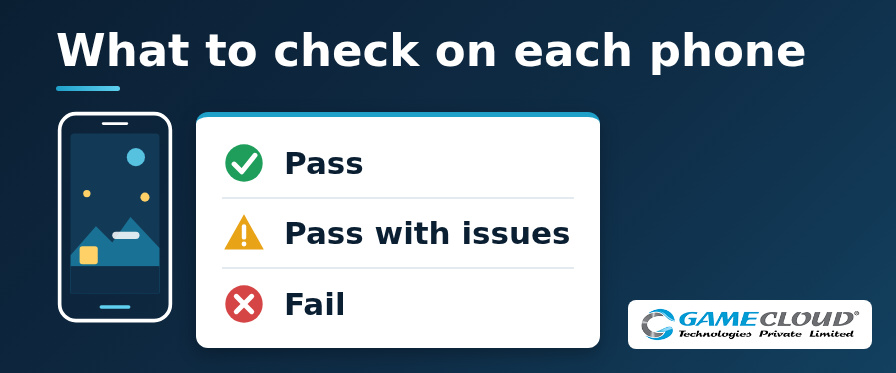
Every device ends with one of three results. Define them in the report itself so producers, developers and support all read them the same way.
- Pass: the agreed run finished on that device and no issue was observed.
- Pass with issues: the run was completed, but with issues observed along the way, such as clipped UI, slow loads or a reload after resuming, each linked to a bug report.
- Fail: the run could not be completed on that device because of a crash, a blocker or an install that never finished.
These results describe what was seen during the agreed run on that build. They are not a general verdict on the device. The results table should also list the devices that were actually tested. If a phone on your list was swapped for a close substitute, the table should name the substitute and record that you agreed to it.
Turning a failed device into a decision
A failing device leaves the team three options: fix the problem before release, accept it and brief player support, or stop offering the game on that hardware. On Google Play, the device catalog lets you exclude a device model, which covers every variant of that model and the whole app, or set exclusion rules by RAM or system on chip. Excluded devices can no longer see or install the game on Google Play, so an exclusion limits distribution there and is a business call best made with the full results in view.
The App Store works differently. Availability follows the minimum OS version you set and any hardware the game genuinely depends on, and Apple's guidance says those hardware requirements are for real dependencies, not for choosing which devices get the game.
Look for patterns before deciding anything. Three failures that share a RAM size or an Android version often trace back to one cause. Failures with nothing in common usually need to be investigated one at a time.
When a per-device check earns its place
It fits best wherever a build meets new hardware: before a closed beta or soft launch, before a store update that changes rendering or memory use, and after a major Android or iOS release starts reaching your players' phones. It sits alongside functional and regression testing rather than replacing them, and it answers one narrow question quickly: does this build run properly on the devices your players actually own?
Have a device list ready?
GameCloud has run outside QA for game studios since FY 2010-11, and that work now spans PC, iOS, Android, TV, Web, XR and other emerging platforms. Mail your device list to Sales@GameCloud-Ltd.com, together with the build you want checked and the day you need answers back. We can discuss a device-by-device plan once we have reviewed the build, scope and availability.